How do I send videos to Meta Ads or TikTok Ads?
Connect your Meta or TikTok ad account and send approved videos straight to your ad library in one click.
Connect your ad account once, then send approved videos straight to it — no downloading and re-uploading. Connecting is free on every plan.
🔌 Connect your ad account
Open Integrations
Go to Settings → Integrations.
Choose your platform
Choose Meta Ads and click Continue with Facebook, or choose TikTok Ads and click Continue with TikTok.
Select your ad accounts
Log in and select the ad account(s) you want to use. You can connect more than one.
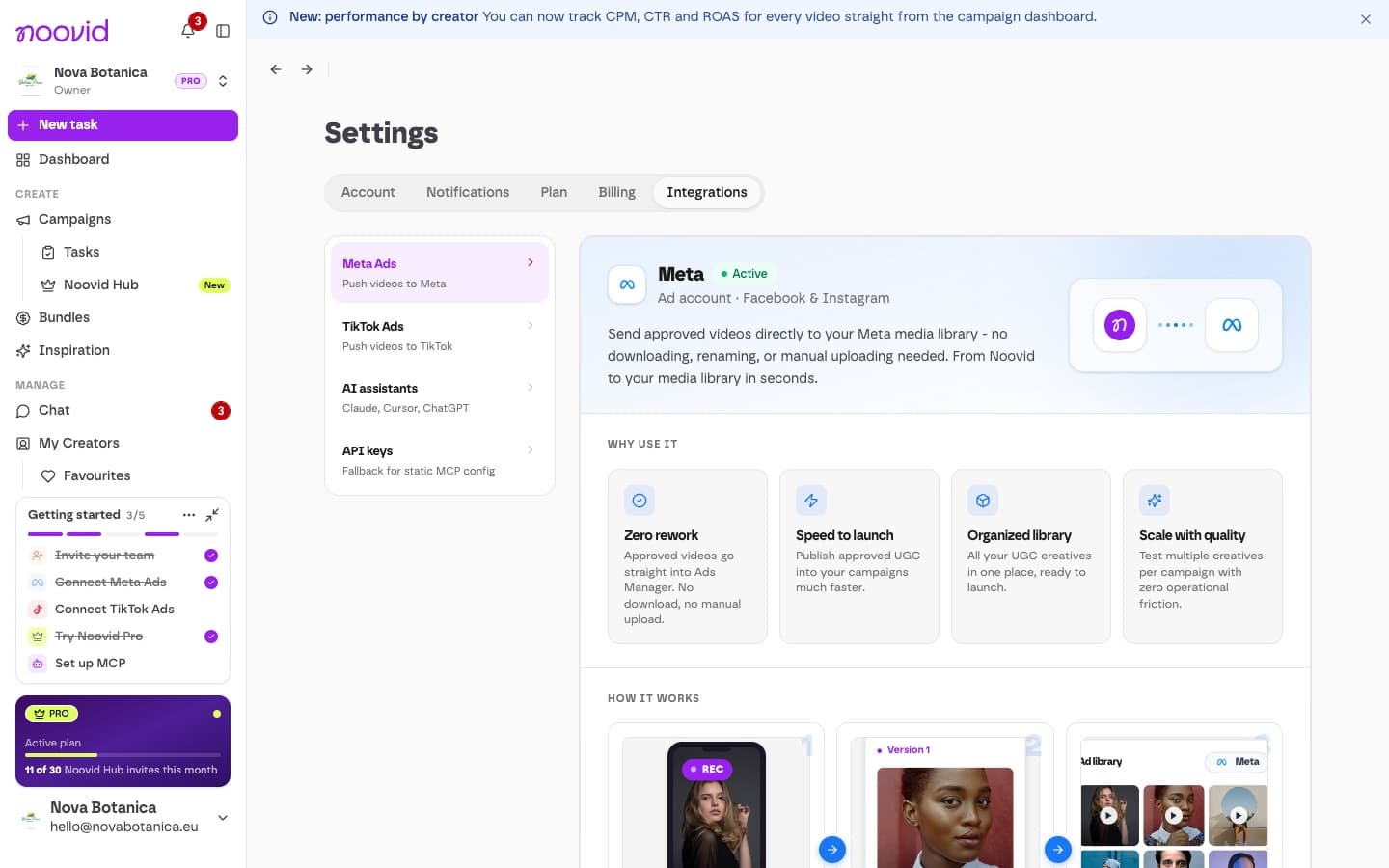
Connecting and disconnecting ad accounts needs the Admin or Owner role.
📤 Send a video
- Open an approved job, or go to Videos in the sidebar.
- Click Send to Meta Ads or Send to TikTok Ads (or, on the Videos page, Send all to ads to send several at once — you can set a name template).
- The video is uploaded to your ad account's media library, tagged "Noovid", ready to use in a new ad.
Nothing goes live on its own
Sending a video only adds it to your library. You create and launch the ads in Ads Manager as usual.
🔗 Already uploaded the video yourself?
Use Link existing to connect the video in your ad account (or several variants and re-cuts of it) to the Noovid video, so its results show up in Noovid.
Once your videos are running, see how they're doing: Ad performance metrics
When are the Photo Pack photos delivered, and can I request revisions?
When the Photo Pack photos arrive, your 7 days to approve them, and how to request up to 2 revisions within your brief.
How do I see how my videos perform as ads?
Ad metrics for your Noovid videos on Meta and TikTok: what's included on each plan and where to find them.